

2.2.0104243.2 MB
MIT
strict
core18
Fakecam
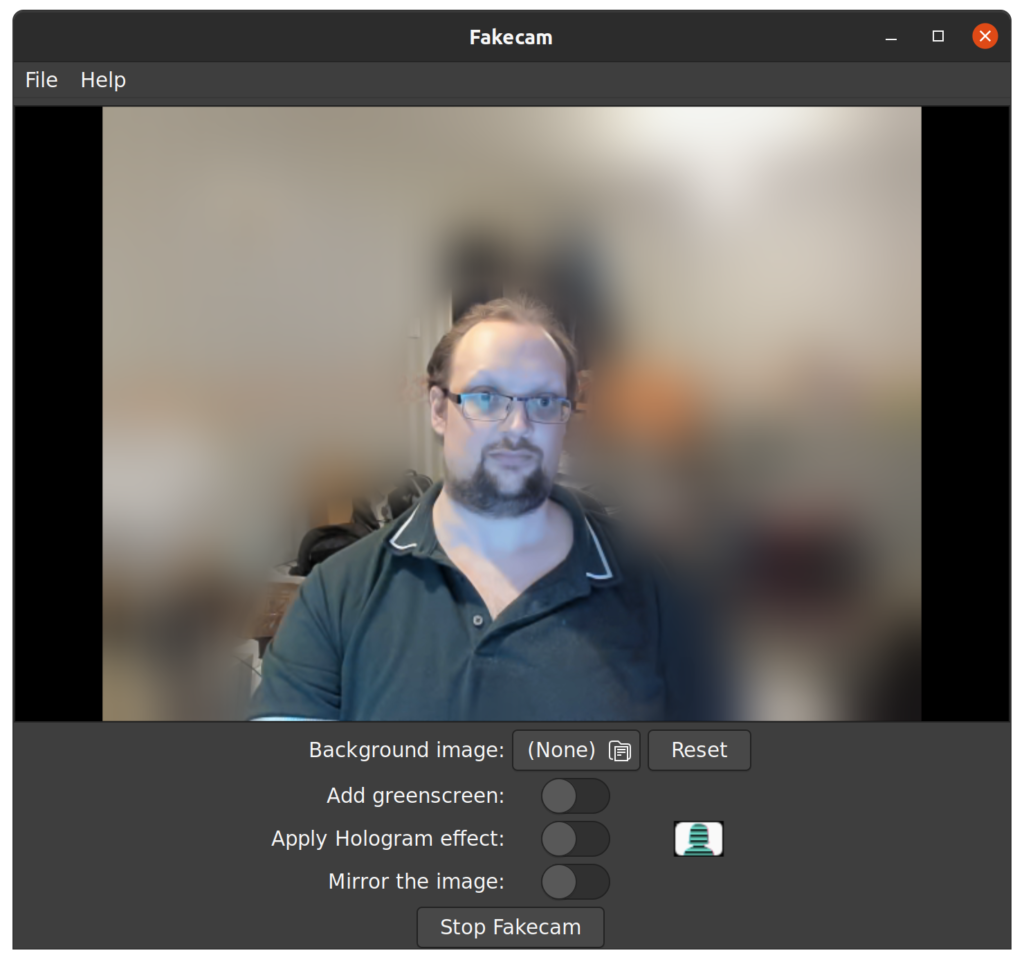
Fake background for your webcam for use in streaming and video conferencing.
The app provides the ability to either blur your surroundings or replace them with an image of your choosing. There is also a feature to apply a Star Wars holograph-syle effect to make it appear that you are talking from a galaxy far away. The app will make this cut-out version of your Webcam feed available as a second webcam feed to use in any webcam-supporting app such as Zoom or Skype - while fakecam is running, simply choose the "Fakecam" video input device in a third-party app to use the output of fakecam as your video feed for that app.
[Based on the work of Ben Elder](https://elder.dev/posts/open-source-virtual-background/)
## v4l2loopback
To use this app you need to install the
### Step by step instructions
On Debian and Ubuntu install the package with:
You will also need to configure the kernel module with some non-default options. Do this by adding the following line into
The kernel module is not loaded at bootup so we also need to add a configuration to make it load automatically. On Debian and Ubuntu this is done via adding
## TL;DR Script for Debian and Ubuntu derivatives
## Credits
The app provides the ability to either blur your surroundings or replace them with an image of your choosing. There is also a feature to apply a Star Wars holograph-syle effect to make it appear that you are talking from a galaxy far away. The app will make this cut-out version of your Webcam feed available as a second webcam feed to use in any webcam-supporting app such as Zoom or Skype - while fakecam is running, simply choose the "Fakecam" video input device in a third-party app to use the output of fakecam as your video feed for that app.
[Based on the work of Ben Elder](https://elder.dev/posts/open-source-virtual-background/)
## v4l2loopback
To use this app you need to install the
v4l2loopback kernel module. In Debian and Ubuntu derivatives this is supplied in the v4l2loopback-dkms package in their archives. There is a script included at the bottom of this page that you may use to understand the simple steps.### Step by step instructions
On Debian and Ubuntu install the package with:
sudo apt install v4l2loopback-dkmsYou will also need to configure the kernel module with some non-default options. Do this by adding the following line into
/etc/modprobe.d/fakecam.conf and then run sudo modprobe -r v4l2loopback; sudo modprobe v4l2loopback: options v4l2loopback devices=1 videonr=20 cardlabel="fakecam" \ exclusivecaps=1The kernel module is not loaded at bootup so we also need to add a configuration to make it load automatically. On Debian and Ubuntu this is done via adding
v4l2loopback as a single word on a new line in a new file called /etc/modules-load.d/fakecam.conf.## TL;DR Script for Debian and Ubuntu derivatives
sudo apt-get install v4l2loopback-dkms echo options v4l2loopback devices=1 videonr=20 \ cardlabel="fakecam" exclusivecaps=1 | sudo tee -a \ /etc/modprobe.d/fakecam.conf echo v4l2loopback | sudo tee -a /etc/modules-load.d/fakecam.conf sudo modprobe -r v4l2loopback sudo modprobe v4l2loopback## Credits
- [Ben Elder](https://elder.dev) for the original implementation
- Snap Store Banner Photo by [Wallace Chuck](https://www.pexels.com/@chuck?utmcontent=attributionCopyText&utmmedium=referral&utmsource=pexels) from [Pexels](https://www.pexels.com/photo/woman-in-yellow-top-3189984/?utmcontent=attributionCopyText&utmmedium=referral&utmsource=pexels)
Update History
2.2.0 (104)13 Dec 2025, 09:47 UTC
29 Apr 2020, 23:44 UTC
10 Dec 2020, 17:53 UTC
13 Dec 2025, 09:47 UTC